SMART DEVICE TECH BLOGS · Guides, explainers & practical tips
SMART DEVICE TECH BLOG

Smart Device Tech, Made Easier to Understand.

Explore useful tech blogs and beginner-friendly guides for smart TVs, streaming devices, home Wi-Fi, connected gadgets, app setup, and everyday troubleshooting.

Independent educational resource. We are not an official support provider for streaming brands.
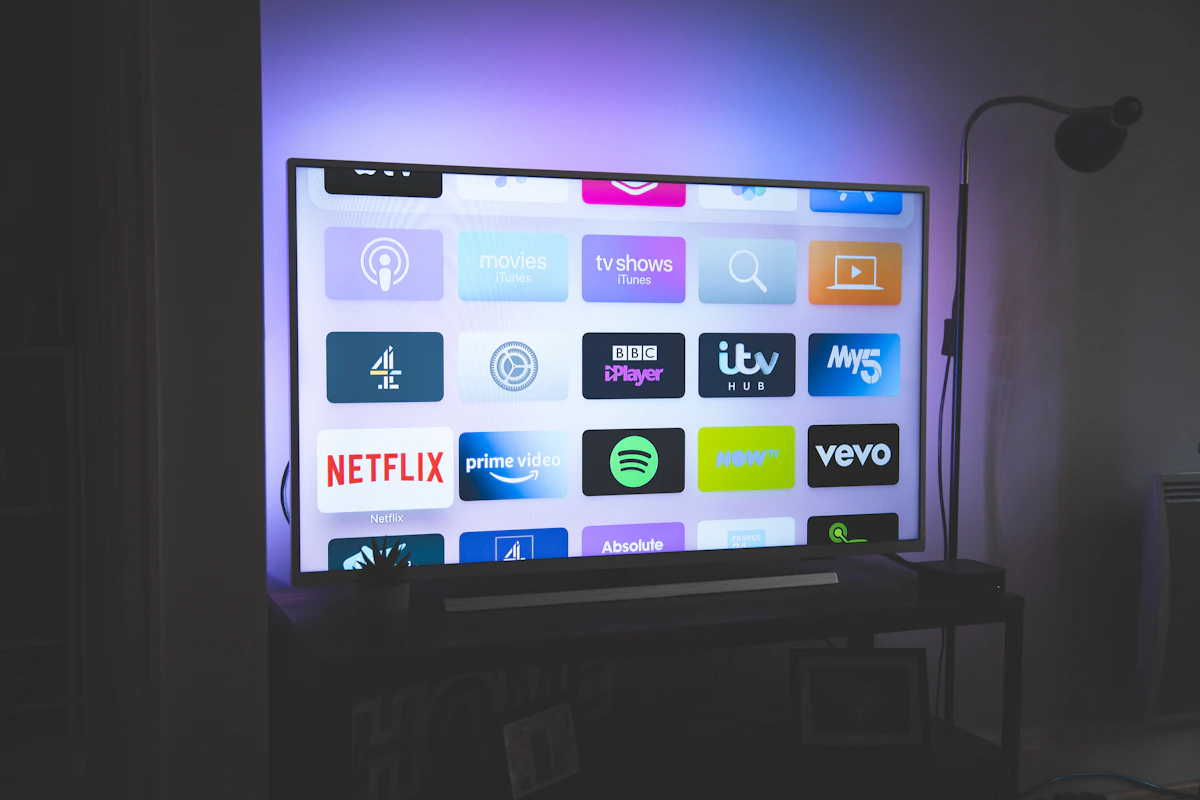
Television in a modern living room
Learn at your own pace
▤Step-by-step tutorialsClear explanations for beginners
⌕Practical troubleshootingUnderstand common device issues
◇Safer account setupUse official provider resources
EXPLORE THE LIBRARY

Explore Smart Device Tech Blogs

Browse practical explainers for streaming apps, televisions, connected devices, and home networking—or visit our dedicated TV activation guide.

Open TV Activation Guide →

START HERE

Before You Activate an App

A few simple checks can help make setup smoother and help you avoid unofficial activation pages.

01

Confirm compatibility

Check your TV model, operating system, region, and the streaming provider’s supported-device list.

02

Connect to the internet

Make sure the television is online and that date, time, and software settings are correct.

03

Follow the app’s instructions

Use the exact sign-in or activation process shown inside the app and verify the official website address.

HOW-TO ARTICLES

Step-by-Step Setup Guides

These are general educational instructions. Screen labels and sign-in methods can vary by device, software version, and region.

Home entertainment television setup
STREAMING GUIDE 01

Set Up Amazon Prime Video on a Smart TV

Use these general steps to find the app and connect an existing account on a supported device.

  1. Check your connection. Connect the TV or streaming player to a working internet network.
  2. Find the app. Open your device’s app store and search for Prime Video. Install it if needed.
  3. Open Prime Video. Select the sign-in or registration option displayed on screen.
  4. Choose the offered method. Depending on the device, you may sign in directly or see a QR code or registration code.
  5. Follow official instructions. If directed to a website, use the exact process provided by the app and Amazon.
  6. Test playback. Once signed in, try a title available with your account or membership.
Prime Video official website ↗
Registration methods differ by device. Do not enter your password or a code on an unfamiliar website.
Television streaming entertainment at home
STREAMING GUIDE 02

Sign In to Hulu on a Compatible TV

Learn the usual app installation and account sign-in flow. Availability varies by device and region.

  1. Check support. Confirm that Hulu is available for your TV model and region.
  2. Install the app. Search for Hulu in your TV’s app store and install it.
  3. Launch Hulu. Select the sign-in option shown on the welcome screen.
  4. Follow the displayed login method. Some devices support direct sign-in; others may show additional instructions.
  5. Verify through Hulu. If the app directs you to a website, check the address and follow Hulu’s official instructions.
  6. Confirm access. Browse available content to check that the app works.
Hulu official website ↗
Hulu’s service availability and supported devices can vary. Check current information from the provider.
Cinema screen and viewing environment
STREAMING GUIDE 03

Connect Netflix to Your Television

Review the typical installation and sign-in process for Netflix on supported smart TVs and streaming devices.

  1. Open the app store. Search for Netflix and install it if the app is not already available.
  2. Start Netflix. Choose Sign In from the app’s welcome screen.
  3. Select a sign-in option. Follow the available on-screen method, which may vary by model.
  4. Follow any device prompt. If a QR code or web address is provided, verify it and follow Netflix’s directions.
  5. Wait for sign-in. Allow the app to connect to your account.
  6. Test the service. Play a title included with your membership.
Netflix official website ↗
Keep your password and one-time verification codes private. Never share them with unverified individuals.
Television in a home media room
STREAMING GUIDE 04

Install and Sign In to Paramount+

Follow the general setup process for Paramount+ on a compatible television or streaming player.

  1. Check compatibility. Verify that the service supports your device and region.
  2. Find Paramount+. Open the device’s app store and install the app if available.
  3. Launch the app. Select the sign-in option presented on screen.
  4. Choose a method. The app may offer direct sign-in, a QR code, or another registration workflow.
  5. Follow official directions. If a web page is required, use Paramount+’s official service and the instructions shown by the app.
  6. Confirm access. Return to the app and test available content.
Paramount+ official website ↗
Subscription requirements and available features may vary by region and device.
Television and home entertainment equipment
DEVICE GUIDE 05

Roku Setup, Device Linking, and “My TV” Codes

Understand the difference between setting up a Roku device and signing in to a separate streaming app.
  1. Connect the device. Follow the manufacturer’s instructions for power, HDMI, and network setup.
  2. Complete initial setup. Choose a language, connect to Wi-Fi, and install available updates.
  3. Follow account instructions. Use the email or linking method displayed on your screen.
  4. Verify the full address. If a linking URL or code appears, use the exact official address specified by the device.
  5. Finish device registration. Complete the steps shown by the device or official Roku service.
  6. Sign in to each app separately. Streaming channels may require their own account and subscription.
Roku official website ↗
The phrase “com.mytv” alone does not identify a verified activation service. Check the complete address shown by your device and avoid unverified activation pages.
Networking equipment in a technology environment
DEVICE GUIDE 06

Connect a Smart TV to Wi-Fi

A stable connection helps apps load, sign in, and stream content reliably.

  1. Open network settings. Use your TV remote to find Settings, Network, or Internet.
  2. Select your network. Choose your home Wi-Fi name from the available list.
  3. Enter your Wi-Fi password. Check capitalization and special characters before confirming.
  4. Run a connection test. If the TV offers a network test, use it to identify problems.
  5. Improve the signal. Reduce obstacles or move the router closer if practical.
  6. Restart if needed. Restart the TV and router according to their manufacturer instructions.
Menu names vary by TV brand. Use the model-specific manual if you cannot find network settings.
QUICK REFERENCE

Common Problems and First Checks

Try these basic checks before changing account settings or seeking device-specific help.

01

Activation code not working

Check for typing errors, confirm the code has not expired, and request a new code in the app if that option is available.

02

App will not open

Restart the app and TV, check for software updates, and reinstall the app if the device supports it.

03

Video keeps buffering

Test your internet connection, pause other heavy downloads, and restart your router if necessary.

04

Sign-in keeps failing

Check account details and subscription status. Use the provider’s official account recovery process if needed.

05

App is unavailable

Check the TV’s model, software version, and regional availability. Older devices may not support current apps.

06

Unexpected activation page

Check which app generated the code and verify the full web address before entering information.

ACCOUNT SAFETY

Set Up Your Devices with Confidence

Use sensible precautions whenever a TV asks you to sign in or link an account.

  • Use the official provider website specified by the app.
  • Do not share passwords, one-time codes, or private account details with strangers.
  • Avoid unfamiliar pages that request unnecessary payment information.
  • Check the address carefully before entering an activation code.
  • Contact the provider through its published official channels for account-specific help.
GOOD TO KNOW

Frequently Asked Questions

Answers to common questions about streaming apps and TV setup.

What is a TV activation code?

Some apps use a temporary code to link a television to an existing account. Follow the instructions displayed inside the app and use the official website it specifies.

Can every streaming app run on every smart TV?

No. Compatibility depends on the TV model, operating system, software version, region, and the provider’s current supported-device list.

Do I need a separate subscription for each service?

Most services have their own account and subscription requirements, although some bundles may include multiple services. Review each provider’s current terms.

Why does my activation code expire?

Some codes are temporary security measures. Reopen the app and request a replacement if that option is available.

Is MyTechieBlogs an official streaming support service?

No. MyTechieBlogs is an independent educational technology website. It is not an official representative of Amazon, Hulu, Netflix, Paramount+, or Roku.

Does MyTechieBlogs need my streaming password?

No. These educational guides do not require you to send us passwords, activation codes, or one-time verification codes.

ABOUT MYTECHIEBLOGS

Technology Guides for Everyday Use

MyTechieBlogs publishes educational content about smart TVs, streaming devices, home networking, and consumer technology. Our goal is to make common setup processes easier to understand through clear explanations and practical troubleshooting information.

Learn About Our Website